Microsoft Entra ID Protection Mistakes You Must Avoid (and how to)
Microsoft Entra ID (formerly Azure AD) is the most prominent and widespread Identity and Access Management (IAM) tool.
Nearly every organisation relies on it to let users log in securely and manage access across apps and services.
While being extremely powerful, it’s often misunderstood or misconfigured, leaving serious loopholes in your environment.
Author
Niels KroezeCloud Content Specialist
Reading time 6 minutesPublished: 05 December 2025
8 Mistakes in Microsoft Entra ID to avoid
Compromised credentials are still the number 1 entry point to attackers per today. That alone should tell you how much a solid Entra ID configuration matters.
We’ve pulled together eight common Entra ID mistakes, along with tips and strategies to help you avoid them in your own tenant.
Mistake #1: Misunderstanding/configuring risk levels in Conditional Access Policies
The first mistakes is a common misunderstanding of how Conditional Access should be configured.
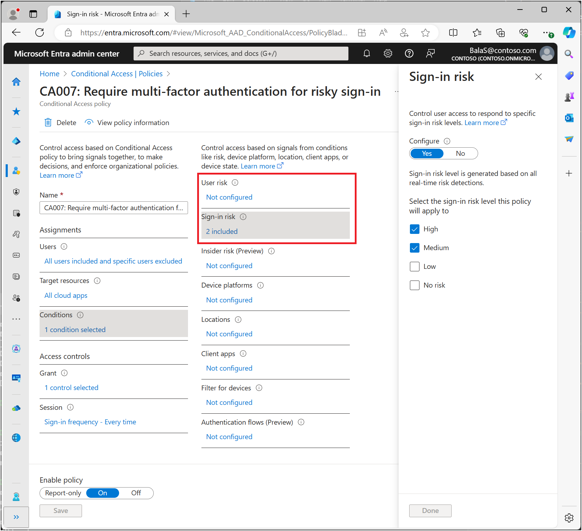
In the protection section, open Conditional Access and go to Policies. Filter by risk to see policies tied to risky events. Under Sign-in risk, you’ll see checkboxes for High, Medium, and Low (see image below).
At first glance, you might think these options mean “greater than or equal to.” For example, if you select Low, you might assume it automatically also applies to Medium and High risks.
But nothing more is true. These checkboxes mean “equal to” not “greater than or equal to.” So, if you select Low, the policy applies only to low-risk sign-ins.
Another related mistake here happens when you combine user risk and sign-in risk in the same policy. In that case, both conditions *must be true* for the policy to apply. Instead, create separate policies for each. This way, user risks and sign-in risk can trigger independently, and your protection actually works as intended.
Mistake #2: Challenges with Passwordless Authentication
Many admins set up a Conditional Access policy for high-risk users and enable the Require password change option under the Grant settings. On paper, that sounds fine, but it enforces MFA and adds another layer of security. This can confuse passwordless users who don’t have traditional passwords.
Here’s what happens: when you mark a passwordless user as compromised, they’re flagged as “high risk”. On their next sign-in, Azure forces a password change, which they again, don’t have, hitting a dead end.
Solutions:
Block authentication: Instead of requiring a password change, consider blocking authentication for high-risk users to give a clearer message of action to users.
Exclude passwordless users: Alternatively, you can exclude passwordless users from policies that require a password change. That way, you treat password and passwordless users differently and don’t disrupt passwordless users.
Mistake #3: The “One-Size-Fits-All” approach
As with many things in the cloud, and in life, there isn’t such a thing as “one-size-fits-all”. The same is true for identity protection.
Avoid applying the same identity protection policies to all users. Instead, create custom policies. Because different user groups, such as administrators and regular users, have varying security needs as their risks vary.
For example, you might create one policy for your admins and VIPs, and others for general users. With admins, you typically take on a stricter stance, like blocking access even at a medium or low user risk level. For general users, you could block only when the risk is high.
This approach helps you roll out Identity Protection gradually. Try to start with pilot users, build some confidence, avoid being flooded with false positives, and ramp up protection over time.
Security E-book
Learn how to secure your Azure environment with different technologies, tools and best practices we apply daily with our software-driven customers.
Building on the previous point about your policy not being “One-size-fits-all”: don’t automatically exclude guests from Entra ID Protection. Guest users often access the system from uncontrolled devices, increasing security risks.
Many think: “I don’t control guest identities, so I can’t assess their risk. I also don’t want to lock them out, so let’s skip user-based risk policies for guests.”
While this might seem logical at first, in reality you’ve far less visibility and control over their account, devices and sessions. If anything, you should be more aggressive with Entra ID Protection policies for guests. Consider applying stricter Identity Protection policies for guest users to reduce potential risks from their access.
Mistake #5: Overlooking audit log retention
The last mistake has to do with audit log retention. Entra ID log retention depends on your license. However, risky users never disappear:
Free: 7 days of risk sign-ins
P1 Licence: 30 days
P2 Licence: 90 days
Data retention issues: Upgrading your license does not backdate logs. That means if an incident occurs and you buy P1 or P2 to get more history, it won’t help recover older data. This can also be tricky if you’ve investigated Entra ID Protection before purchasing a license. Entries on the Risky users page aren’t affected by retention, but the data you need for a proper investigation might be.
For example, the Risk asked updated field could fall outside your log retention, making it impossible to follow up with comprehensive investigations into other Entra ID logs like Risky sign-ins or Risk detections.
To avoid this:
Proactively monitor: Regularly review and investigate risks to pinpoint issues early.
Data export: Export logs to solutions like Log Analytics or Microsoft Sentinel to preserve information beyond default retention periods.
Want to learn how to secure your Azure cloud?
Then watch our Azure Security On-demand for practical tips, best practices, and demos on securing your Azure environment.
Require phishing-resistant MFA where possible (Authenticator, FIDO2, Windows Hello)
This closes one of the largest attack paths in Entra ID.
Mistake #8: Not Using Privileged Identity Management (PIM)
One of the biggest oversights in Entra ID security is leaving permanent admin privileges assigned to accounts. Without PIM, admins have standing access, dramatically increasing the attack surface.
Why it’s dangerous:
Stolen admin credentials grant full, continuous control
Harder to track who performed what admin action
Impossible to enforce time-bounded or approval-based elevation
Best Practices with PIM:
Require Just-In-Time (JIT) elevation for all privileged roles
Enforce MFA at activation
Use approval workflows for sensitive roles
Implement periodic access reviews
Monitor PIM activation logs for suspicious activity
PIM is one of the strongest protections against privilege escalation and credential compromise.
Closing thoughts
We’ve covered seven common mistakes here that can leave gaps in your Entra ID configuration and shared practical ways to address them.
In doing so, organisations can fortify their Entra ID protection strategy, improve their security posture and reduce the risk of unauthorised access or breaches.
And remember: don’t treat Entra ID as “set it and forget it.” Continuous attention and fine-tuning is the key to keeping your users secure, and your environment protected.
Get in touch with us!
Do you need help with implementing some of these actions in this article or want to improve your security posture in Azure?
At Intercept, we can help your organisation achieve a stronger, more resilient foundation in the Azure cloud.