Blog Azure Security & Compliance Infrastructure

10 Identity and Access Management (IAM) Best Practices in Azure

Compromised credentials are still the number #1 entry point to attackers today.

The way you handle identities in Azure can make or break your security. 

Drawn from years of experience working with customers and managing identities in the cloud, we’ve pulled together the best practices for Identity and Access Management (IAM) in Azure. 

Fabian Super

Author

Fabian Super Azure Architect

Reading time 7 minutes Published: 24 February 2026

10 Azure IAM Best Practices

1. Treat identity as the primary security perimeter

Nowadays, identity is and should (always) be the main security perimeter in the defence-in-depth layered security model – the first " gate" of your fortress.

Microsoft Entra ID (formerly Azure Active Directory) is Microsoft’s Identity and Access Management solution for Azure. It helps organisations secure and manage identities for hybrid and multi-cloud environments. You can publish internal or cloud-based applications through Entra ID and control who can access them.

It supports features like:

  • Multi-factor authentication (MFA)
  • Conditional access
  • Single-sign-on (SSO)

You can also extend your on-premises Active Directory to integrate with Entra ID, creating one consistent identity layer across environments.


2. Centralise identity management

In a hybrid identity setup, it’s best to connect your on-premises directory with the cloud. This lets your IT team manage accounts from one place and keeps users productive by providing a single identity for accessing both cloud and on-prem resources. 

If you have multiple identity providers, centralise identity management.

In other words: only use one identity provider as your primary one. Do NOT juggle multiple identity providers when setting up hybrid identities. When you have an all-premises Active Directory, sync your identities to Entra ID so it becomes your single source of truth.

Azure Security Ebook (1)

Security E-book

Learn how to secure your Azure environment with different technologies, tools and best practices we apply daily for our customers.

Download now!

3. Manage connected tenants

Be aware and manage connected tenants to know what’s touching your production environment. It's crucial to have visibility into all subscriptions, networks, Virtual Private Networks (VPNs) or ExpressRoute connections tied to your production environment.

Additionally, you need visibility into how identities sync or pair across tenants. Essentially, you’d want to know what can reach your network and resources and from where. This helps confirm that your organisation’s policies and any regulatory requirements are being followed. Besides, it uncovers unexpected connections that could pose a risk, helping you keep your environment secure.


4. Strengthen your credentials

Password-based attacks continue to dominate identity attacks, accounting for more than 99%.

Alongside countermeasures such as strong authentication, start by banning commonly attacked passwords. Research shows that traditional complexity and expiration rules often backfire, causing users to pick passwords that are easier to guess. 

Instead, use Microsoft Entra password protection to prevent easily guessable passwords, or consider going passwordless. By all means, don’t rely solely on strong passwords.


5. Enable single sign-on

Organisations that don’t provide a single, common identity force users to manage multiple passwords, increasing the risk of weak or reused credentials. A better approach is to use single sign-on (SSO).

You can achieve SSO by using a single identity solution across all your apps and resources. Your users can use the same set of credentials to log in and access all the apps and resources they need without having to re-enter their password.


6. Enable multi-factor authentication (MFA)

The strongest countermeasure to prevent password-based identity attacks is to enable multi-factor authentication (MFA). There are multiple ways to enable MFA within Entra ID:

  • Security Defaults: It’s a default setting you enable at the tenant level that requires administrators to use MFA. It blocks legacy authentication and protects privileged activities with MFA, but you cannot change anything. It's a default setting, so it's on or off.  
  • Per user: As the name suggests, it enables MFA on a per-user basis. Again, this isn’t the preferred method, as it requires manually setting up MFA for every new user in your tenant. You don’t want that.
  • Mandatory MFA: Introduced last year by Microsoft, it requires MFA to be set up for all users within the tenants when signing in to the Azure Portal, Entra Admin Centre, Azure CLI, etc. And again, it's mandatory, so you cannot change anything.
  • Conditional access: Provides granular control over access and MFA, and is based on if and then statements. These if-then statements can be based on location, user risk, or the application being accessed. You can include whatever conditions make sense for your environment. Based on those rules, access will either be allowed, denied, or require MFA before granting entry.

Tenants that use security defaults experience 80% fewer compromises than tenants that don’t”.

Microsoft

As you can see, MFA can be enabled in different ways. However, the preferred method is Conditional Access. 

Note:

Don’t mix the methods together. This can create conflicting rule, user confusion and security gaps in your environment. 

7. Lower exposure of privileged accounts

Privileged accounts administer and manage IT systems, which makes them prime targets for attackers. Hence, minimise access of those with privileges to reduce risk, and isolate these accounts from daily use to prevent accidental or malicious compromise.

Privileged Identity Management (PIM) is a service in Microsoft Entra ID that enables you to manage, control, and monitor access to important resources in your organisation. 

Best practices:

  • Turn on Microsoft Entra PIM to get notifications for privileged role changes.
  • Ensure all critical admin accounts are Microsoft Entra accounts; remove consumer accounts (like hotmail.com or outlook.com).
  • Create separate admin accounts for administrative tasks and block them from daily tools like email or browsing.
  • Identify and categorise highly privileged accounts (individual, shared, emergency, automated, or external).
  • Implement “just in time” (JIT) access to limit privilege exposure and automatically revoke roles after a set duration.


8. Plan for routine security improvements

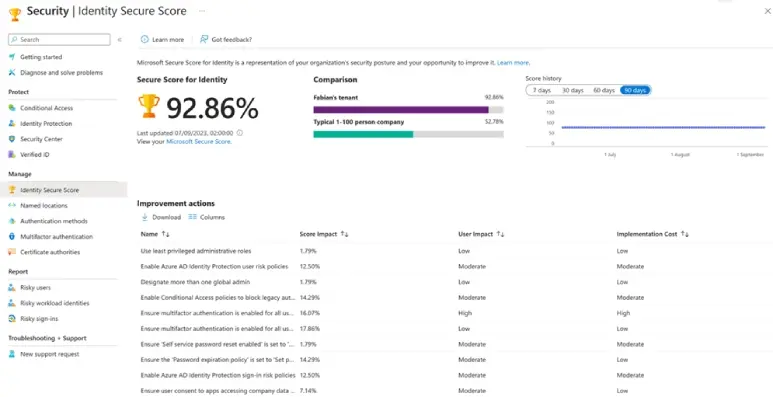
Security is constantly changing, so it’s important to keep improving and find new ways to protect your environment. Microsoft Entra’s Identity Secure Score is a set of recommended security controls that plan future security improvements. You can track your score over time and compare it with others in your industry. Use this data to plan regular security reviews and implement updates based on best practices.

Microsoft Security Identity Secure Score dashboard showing a score of 92.86% and a list of required improvement actions.


9. Use Role Based Access Control (RBAC)

Do not give everyone unrestricted permissions in your Azure subscription or resources. Use role-based access control (RBAC) to limit actions to only what a user or group needs at a particular scope (subscription, resource group, or a single resource).

RBAC is a system that provides access management of Azure resources. Using RBAC, you can separate duties within your team and grant users only the access they need. 

  • With RBAC, you can:
    Allow one user to manage virtual machines in a subscription and another user to manage virtual networks
  • Allow a DBA group to manage SQL databases in a subscription
  • Allow a user to manage all resources in a resource group, such as virtual machines, websites, and subnets
  • Allow an application to access all resources in a resource group
Azure Security Workshop

Want to learn how to secure your Azure cloud?

Then watch our Azure Security On-demand for practical tips, best practices, and demos on securing your Azure environment. 

Watch it now!

10. Actively monitor for suspicious activities

Set up an identity monitoring system to detect unusual behaviour and trigger alerts for investigation. Track attempts like:

  • Sign-ins that can’t be traced
  • Brute force attacks on an account
  • Sign-ins from multiple or unexpected locations
  • Access from infected devices
  • Connections from suspicious IP addresses

Utilise Microsoft Entra ID Protection to see current risks on its dashboard and get daily email summaries. You can also configure risk-based policies to automatically respond when a specified risk level is detected.


Closing thoughts

There’s simply not such a thing as a silver bullet when it comes to securing your identities in Microsoft Azure. 

To secure your identities, you must properly manage and secure them, layer controls, monitor access, and actively manage privileges. We hope this article provides a quick head start for securing your cloud identities in Azure.

Also, ask yourself:

  • How secure is your setup?
  • Do you have these implemented?
  • Are you using conditional access for MFA?
  • And what about just-in-time access for privileged accounts? 
Intercept Sz71249

Get in touch with us!

Do you need help with implementing some of these actions in this article or want to improve your security posture in Azure? 

At Intercept, we can help your organisation achieve a stronger, more resilient foundation in the Azure cloud.